


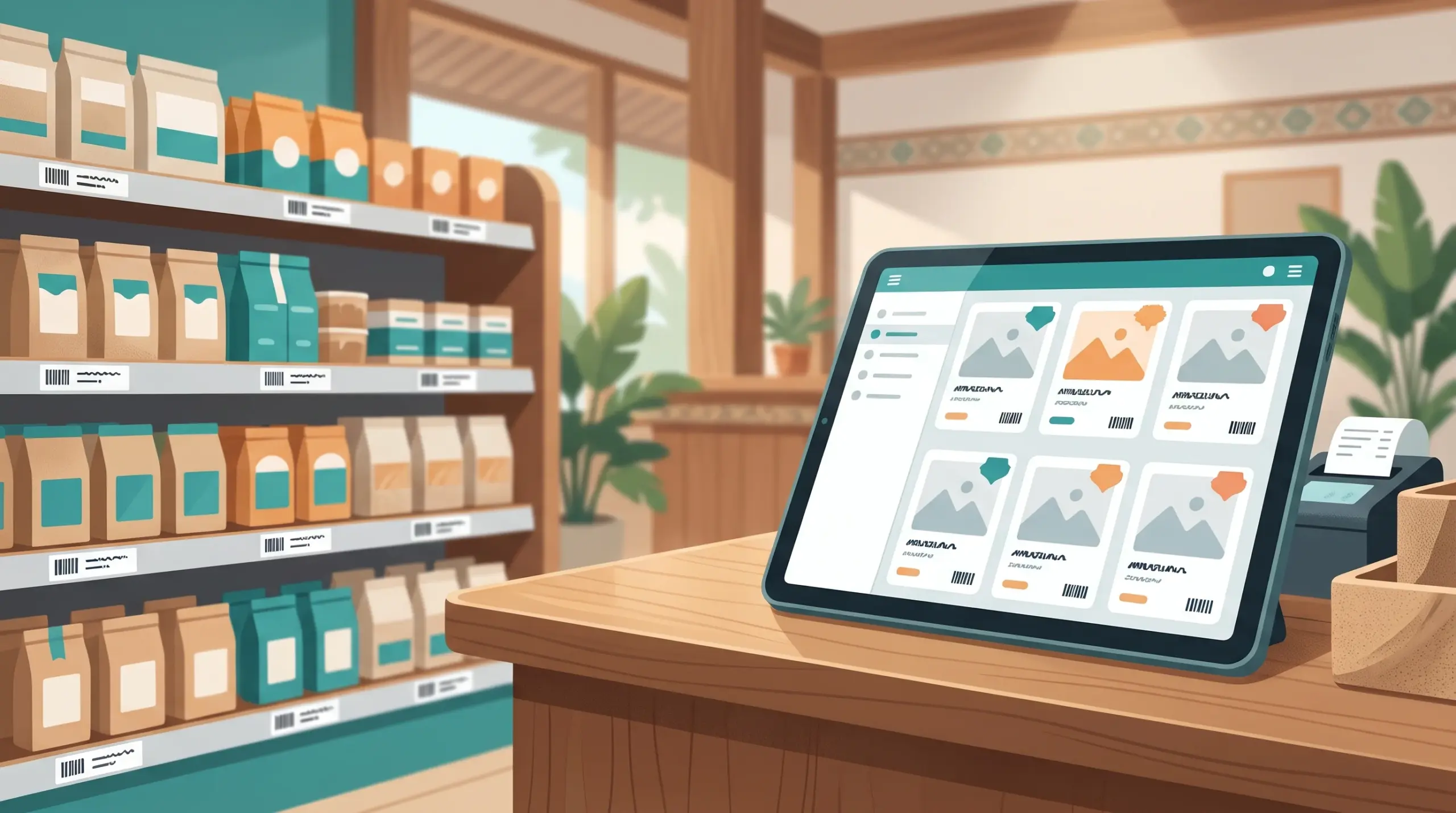
Product Naming in POS: Names, Categories and Barcodes That Keep Your Shop Organized
Most POS problems that look like technical problems are really naming problems. A cashier can’t find “that blue shampoo” because it’s saved as “SH-BL 2”. Your best-seller report shows the same drink three times under three slightly different names. An import creates duplicates because “Coke can” and “Coca Cola Can” look like different products.
Good product naming in POS takes an hour to set up, and it saves you time every day after that. Here’s a simple system.
Why naming matters
- Faster checkout. Staff find items in seconds when names are clear. See Faster Checkout POS Cambodia.
- Accurate reports. One product should appear once in your sales and stock. See Best Selling Products on a POS.
- Cleaner stock counts. Duplicates make inventory numbers wrong. See Inventory Management on a POS.
- Easier training. New staff learn faster when every name follows the same pattern. See New Cashier Training POS.
- Smoother imports. Clean names mean fewer mistakes when you bring in many items. See Import Products to POS.
Rule 1: Use one pattern for every name
Pick a simple order and stick to it. A good starting point is:
Brand + Product + Size or Type
| Weak name | Better name |
|---|---|
| SH-BL 2 | Brand A Shampoo 200ml |
| coke | Brand B Cola Can 330ml |
| Rice | Jasmine Rice 5kg |
| T-shirt new | Brand C T-Shirt Round Neck |
Use your own real brands and products. The point is the pattern, not the example.
Rule 2: Avoid cryptic abbreviations
Short codes make sense to the person who made them. Everyone else guesses. Write names the way a new cashier would say them out loud.
Rule 3: Be consistent with spelling
Choose one spelling for each brand and unit, and use it everywhere. For example, always “ml” and not sometimes “ML” or “milliliter”. If you use Khmer names, use the same Khmer spelling for the same product every time.
Rule 4: Use the brand and category fields
MyLekha lets you filter items by brand or category, but only if you fill them in the same way each time.
- Brands: one spelling per brand
- Categories: keep them few and clear, such as drinks, snacks, household and personal care
- Avoid overlap. An item should belong in one obvious category
See Organizing Your Product Catalog.
Rule 5: Decide between variants and separate items
If a product comes in colors or other options, group the options together instead of making many unrelated items. See Selling Items With Variants. If two items are really different products, give them separate names.
Rule 6: Use real barcodes where they exist
Most packaged goods already have a barcode. Scan it into the item, so cashiers can scan at the counter. See Barcode Scanner POS Cambodia. For items without a barcode, MyLekha can print labels with a custom template in the Dashboard.
Rule 7: Search before you add
Before creating a new item, search for it. Many duplicates come from adding something that was already there under a different name.
Fix your existing list
If your catalog is already messy, don’t worry:
- Export or review your list and sort it by name
- Spot duplicates and near-duplicates
- Choose one correct name for each product
- Use batch update in the MyLekha Dashboard to fix many items at once
- Merge or remove duplicates carefully, after checking their stock
- Run an inventory count to confirm your numbers
Changing prices later
Clean names make price updates easier too, since you can find and change groups of items without missing any. See Change Prices POS.
A quick checklist
- One naming pattern written down
- No cryptic abbreviations
- Consistent spelling and units
- Brands and categories filled in
- Variants grouped, not duplicated
- Real barcodes scanned in
- Duplicates searched before adding
- Team knows the rules
Conclusion
A tidy catalog is one of the cheapest ways to make your POS faster and your reports more honest. Write down your naming pattern, share it with your team and clean up what’s already there. In a week, you’ll notice the difference at the counter.
Explore MyLekha POS features, see plans, or talk to our team about setting up your products.
FAQ
Can I filter products by brand and category?
Yes. MyLekha supports filtering items by brand or category.
Can I fix many product names at once?
Yes. The MyLekha Dashboard supports batch updating items.
Can I import many products?
Yes. The MyLekha Dashboard provides an import template for adding items together.
Can I scan barcodes without a scanner?
Yes. MyLekha scans barcodes using your phone or tablet camera.
Can I print labels for items without barcodes?
Yes. The MyLekha Dashboard can print labels using a custom template.
Can I try this for free?
Yes. The Starter plan is a free 15-day trial.