

Change Prices POS: How to Update Prices Without Chaos
Sooner or later, your supplier raises a price, and you have to raise yours. It sounds simple, but a price change can go wrong in many small ways. The shelf shows one price, the system shows another, a cashier remembers the old one, and a customer asks why the total is different from what they expected.
This guide shows how to change prices in your POS smoothly, so the shelf, the screen and your staff all agree on the same number.
What goes wrong during a price change
- The shelf and the system disagree. The label says one price and the checkout says another.
- Some items are missed. You update ten products and forget the eleventh.
- Staff don’t know. A cashier gives the old price from memory.
- Different shops, different prices. A branch still uses the old list.
- Temporary and permanent changes get mixed up. A short promotion becomes a permanent price by accident.
Step-by-step: a clean price change
1. Decide the new prices first
Write them in a simple list with the old price, the new price and the reason. Check that your margin still makes sense. See Profit and Loss Report in Cambodia.
2. Choose a quiet time
Change prices before opening or after closing, not during a rush.
3. Update in one go
For many items, use the MyLekha Dashboard, which supports batch updating items, so you don’t edit them one by one. For a few items, edit them individually. See Import Products to POS.
4. Check different stores and customer types
If you use different price levels for different stores or customers, update each level. See Multiple Price Levels on a POS.
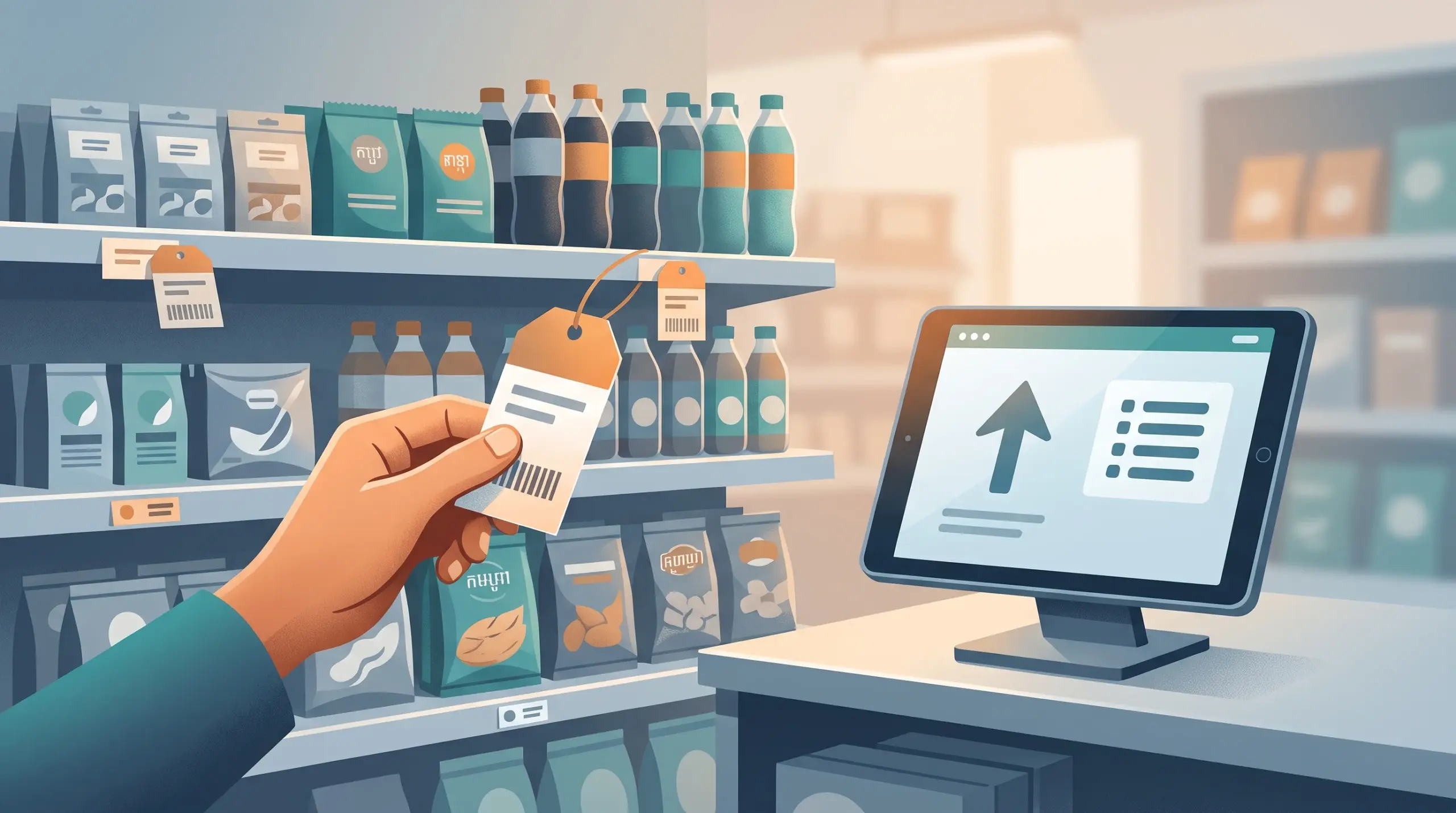
5. Update shelf labels and menus
The price your customer sees should match the price at the counter. Replace shelf tags, signs and menus on the same day. MyLekha can also print labels. See POS Barcode Scanner Cambodia.
6. Tell your team
Give staff a short list of what changed. Ask them to say it out loud once, so it sticks.
7. Test a few items
Scan or search a handful of changed items and make sure the new price appears.
8. Watch for questions
Customers may ask about the change. Staff should have a calm, honest reply. See Handle Customer Complaints in Cambodia.
Price change or discount?
Use the right tool:
- Permanent change. Update the item’s price.
- Temporary offer. Use a discount by percentage or amount, so the base price stays the same. See Running Discounts and Promotions.
This keeps your records clean and makes it easy to end the offer.
A simple customer message
Keep it short and polite. For example:
“Prices on a few items have been updated because our supplier costs went up. Thank you for understanding.”
Adjust the words to match your shop.
After the change
- Compare sales for the next week with the week before
- Check your best-sellers to see if any dropped sharply. See Best Selling Products on a POS.
- Adjust if needed
A quick checklist
- New prices written down and checked
- Done at a quiet time
- System updated (batch or single)
- All price levels and stores updated
- Labels and menus replaced
- Staff briefed
- Sample items tested
- Sales watched afterward
Conclusion
Changing a price shouldn’t be stressful. Decide the numbers first, update the system in one go, match your labels and brief your team. Your customers see one consistent price, and your records stay clean.
Explore MyLekha POS features, see which plan fits, or talk to our team about managing your prices.
FAQ
Can I update many prices at once?
Yes. The MyLekha Dashboard supports batch updating items.
Can different stores have different prices?
Yes. MyLekha supports price levels per store and per customer type.
Should I use a discount or change the price?
Change the price for a permanent update, and use a discount for a temporary offer.
Can I print new labels?
Yes. The MyLekha Dashboard can print labels using a custom template.
Can I try this for free?
Yes. The Starter plan is a free trial.