

Order Status Screen for Cafés: Pending, Preparing, Ready
At lunchtime in a busy café, the same question is asked again and again: “Is my order ready yet?” Customers crowd the counter, staff stop work to answer, and the people who are waiting patiently get less attention than the people who ask loudest.
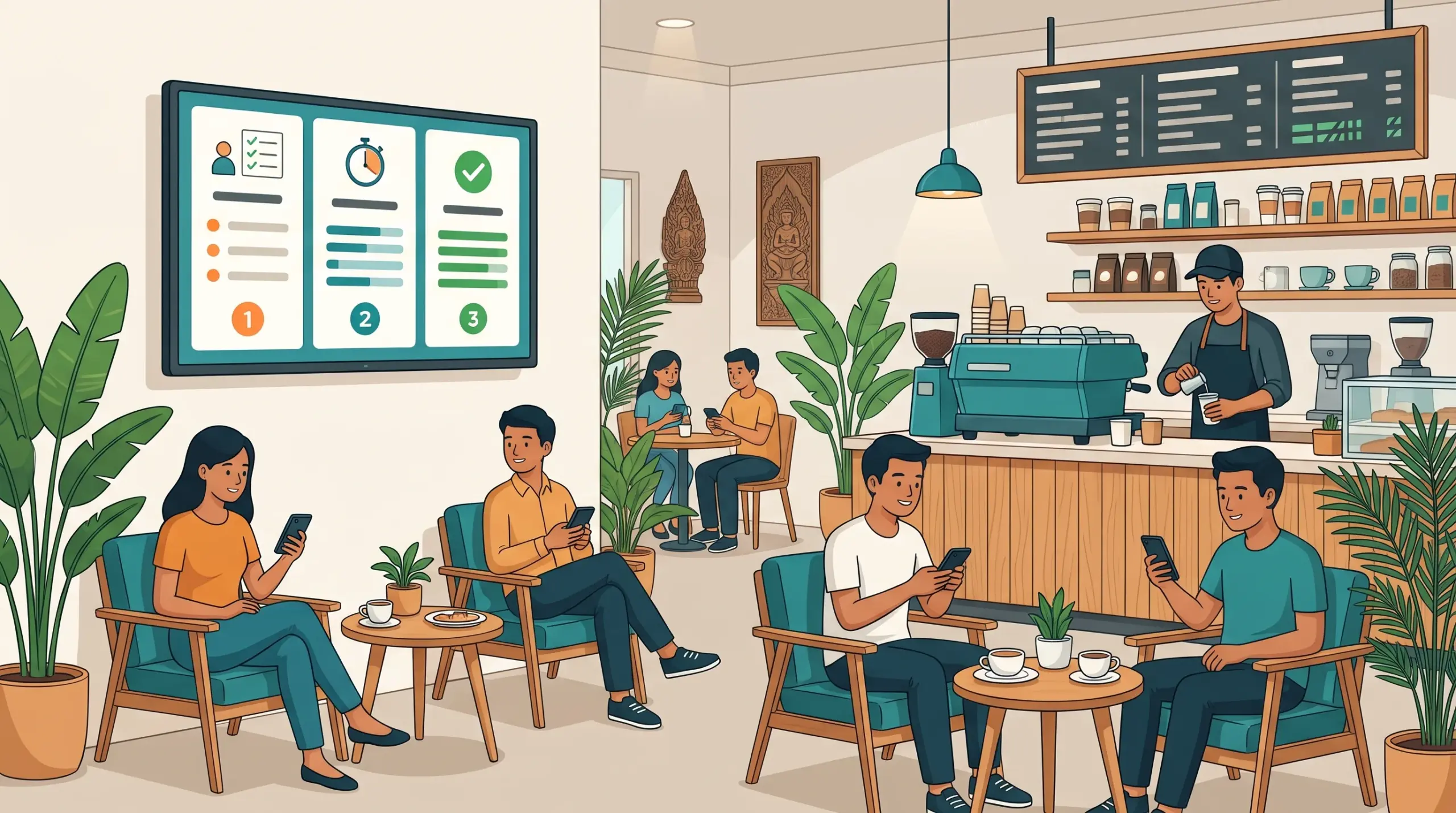
An order status screen for cafes answers that question without a word. Customers look up, see where their order is, and step forward when it’s ready. MyLekha Display includes a service customer display built for exactly this.
The problem with counter crowds
- Customers hover at the counter, blocking new orders
- Staff repeat themselves, answering “is it ready?” all day
- Orders get handed to the wrong person when names are shouted
- Customers feel ignored because they can’t see any progress
- Payment confusion when someone isn’t sure whether they’ve paid
What MyLekha Display shows
According to MyLekha’s Features page, the service customer display offers:
- Real-time order display. Orders appear instantly from the POS.
- Live order status. Pending, preparing and ready, shown with the customer name, waiting number and table code.
- QR payment display. The KHQR or ABA payment code, the price and the paid status appear on the screen.
- White-label branding. Your logo, name, tagline and thank-you message.
- Multi-store support. One login, with the option to switch stores.
- Plan-based features. Features, devices and stores are managed by your subscription plan. See Which POS Plan Is Right for Your Business.
How it helps a café
Fewer questions at the counter. Customers can see their status, so staff spend less time answering.
Clear handover. A waiting number or a name on screen reduces mix-ups, especially with takeaway orders. See Takeaway and Delivery Orders POS.
Smoother payments. The QR code, the amount and the paid status are visible, so customers can pay without asking. See KHQR Payment POS Cambodia.
A professional look. Your branding, tagline and thank-you message appear on the screen, which supports your café’s identity.
Works with your kitchen flow. If you use MyLekha Kitchen, your team already follows orders as live, color-coded tickets. See How KDK Coffee Runs 5 Branches With MyLekha.
How to set it up in a café
- Place the screen where customers can see it, near the waiting area, not behind the counter
- Decide your numbering. Use waiting numbers, names or table codes, and keep it consistent
- Set your branding. Add your logo, name, tagline and thank-you message
- Agree who updates the status, and when. Write it on your daily routine. See Daily Closing Checklist POS
- Train your team to glance at the screen and to call out ready orders when needed. See New Cashier Training POS
- Test during a quiet hour, then roll it out for the rush
Tips for a smoother counter
- Keep names short and clear so they fit on screen
- Don’t skip steps. An order marked ready too early causes confusion
- Combine with custom orders so special requests are right the first time. See Custom Orders POS Cambodia
- Review your busy hours and see whether the screen reduces waiting. See Checkout Experience in Cambodia
Who it suits
- Cafés and coffee shops with takeaway
- Bakeries and juice bars with a short wait time
- Small restaurants with counter pickup
- Food stalls with a regular queue
A quick checklist
- Screen placed where customers can see it
- Numbering method decided
- Branding added
- Status routine agreed
- Staff trained
- Tested in a quiet hour
Conclusion
Waiting feels shorter when you can see progress. An order status screen turns a crowded counter into a calm waiting area, and gives your staff time to focus on making orders. It’s a small change that customers notice right away.
Explore MyLekha POS features, see plans, or talk to our team about adding a service screen to your café.
FAQ
What does the order status screen show?
Live order status (pending, preparing and ready), with the customer name, waiting number and table code.
Can customers see the KHQR code on the screen?
Yes. The screen can show the KHQR or ABA payment code, the price and the paid status.
Can I add my logo and a thank-you message?
Yes. The display supports your logo, name, tagline and a thank-you message.
Can I use it in more than one store?
Yes. One login supports switching between stores.
Can I try MyLekha for free?
Yes. The Starter plan is a free 15-day trial.